
Zephyr Interior Design Academy
Hub guide: Student Hub
Welcome to your Student Hub. Everything about your course is in one place: your timetable, fees, receipts, requests and documents.
This guide walks you through it, card by card. Keep it open the first few times.
Who this hub is for
Student Hub is for ZIDA students on every programme.
Opening and signing in
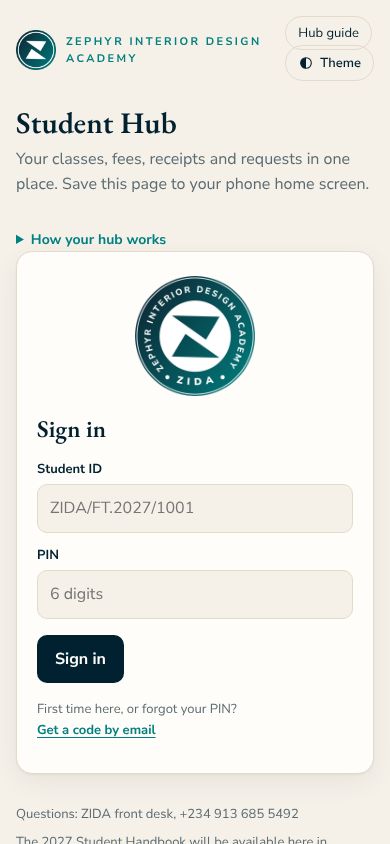
- Open https://zida-team.netlify.app/students/ on your phone or computer.
- Sign in with your Student ID and your own 6-digit PIN. The first time, tap "Get a code": a one-time code is emailed to the address ZIDA holds for you.
- On a phone, add it to your home screen: Share, then Add to Home Screen (iPhone) or the menu, then Install app (Android).
A simple routine
Every day
- Check Home for your next class, any site visit tomorrow and anything due.
Each week
- Check Fees before each due date, and send any Site visit report before its due date.
On Friday
- Review any session with an external facilitator within 3 days.
Your hub, section by section
The tabs in the order you see them.
Sign in
Use your Student ID and your 6-digit PIN.
- The first time, tap "Get a code": a one-time code comes to your email.
- Choose your own 6-digit PIN.
Home
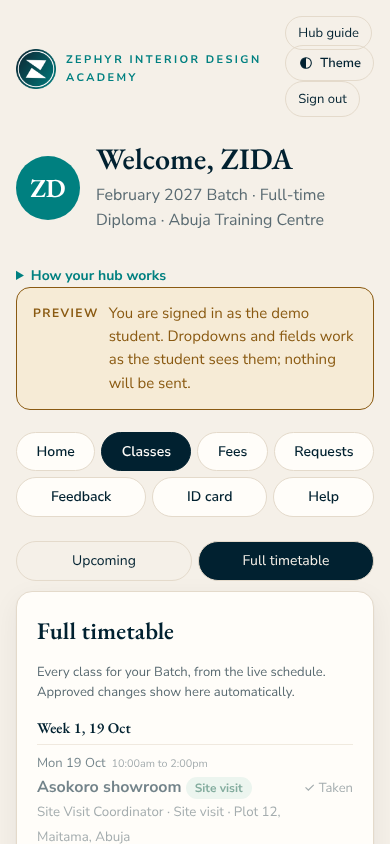
Your programme, next class, documents and notices, any site visit tomorrow, and your Site visit report tasks.
- Check it before each class.
- After a site visit you attended, open Site visit report: write at least 250 words across the four parts and paste your photo or document links (Google Drive). Files cannot be uploaded. Send it by the due date; a late report is still accepted but marked late.
Classes
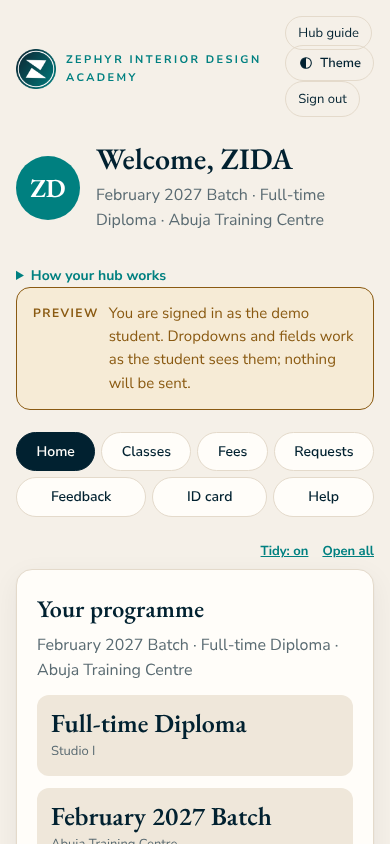
Your timetable (Upcoming or Full timetable), site visits, and your Assessments: upcoming tests and exams, results, site visit report grades and resits.
- Each class opens 24 hours before it starts.
- Tap Full timetable for every class of your Batch by week; Print or save as PDF makes a copy.
- Site visits show with a Site visit pill and the address, meeting point, what to observe and dress notes.
- Results are held while a fee is overdue, and released when Finance confirms the payment. Your site visit report average is one item in each Studio's continuous mark.
Fees
Your invoices, payments and receipts.
- Pay into the account on your invoice and send the proof to the front desk.
- Your receipt comes by email.
Requests
Letters, transcripts, resits, deferral and more.
- Choose what you need: the form shows the fee and the rule.
- An invoice follows; the request starts when payment is confirmed.
Feedback
Tell us how things are going.
- Choose what it is about, give a rating and a comment.
Pass or ID card
Your student pass, or ID card for the Diploma.
- Show it at the front desk, site visits and exams.
Help
How the hub works and the rules for course materials.
- Read it when you need it.
Requests and documents
- Send requests under Requests: the form shows the fee and the rule before you send.
- Your documents (Terms and Conditions, Privacy Policy, School Rules) are linked on Home and at the foot of every page.
What happens after you submit
- Requests: you get an invoice if there is a fee, then emails at each step.
- Feedback goes to the Academic Coordinator. Session reviews are anonymous to the facilitator.
Questions
I see "Slow connection, still saving..."
Wait: it is still saving. Do not tap Submit again. If it fails, you see a message and can try once more.
I forgot my PIN
Tap "Get a code" on the sign-in screen and choose a new PIN.
Someone else's name shows
Sign out and sign in with your own Student ID and PIN.
I made a mistake in something I sent
Tell the front desk on +234 913 685 5492 or send a request.
Feedback on this guide
Tell the front desk, or use the Feedback tab on your hub.
Zephyr Interior Design Academy · Front desk +234 913 685 5492 · All hub guides