
Zephyr Interior Design Academy
Hub guide: HR Hub
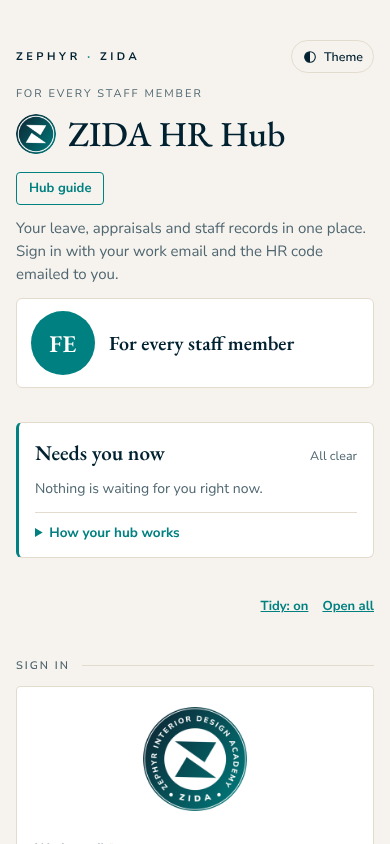
Welcome to your HR Hub. It brings your daily work into one place, so nothing depends on memory.
This guide walks you through it, card by card. Keep it open the first few times.
Who this hub is for
HR Hub is for every member of staff (leave, appraisal, your records and policies).
Opening and signing in
- Open https://zida-team.netlify.app/hr/ on your phone or computer.
- Enter your hub code once. Get your code from Operations privately; never share it or post it in a group.
- The hub remembers your code on that device. On a phone, add it to your home screen: Share, then Add to Home Screen (iPhone) or the menu, then Install app (Android).
- Tap Hub guide at the top of the hub at any time to come back to this guide.
Your routine
Every day
- Open your hub and work through Today's tasks.
- Send your Daily Report by 5pm.
Each week
- Check the cards that are due this week.
On Friday
- Send your Weekly Report under Every Friday by 5pm, if your hub has one.
Your hub, section by section
The sections in the order you see them. Some sit under tabs at the top: tap a tab to switch.
Finding your way: tap a tab to switch. Close all at the top of a tab closes every card in it (Open all opens them). With Tidy on, opening one card closes the others; it is on by default on a phone and you can switch it on or off. Cards with something waiting open by themselves.
Sign in
Sign in with your email and the HR code from Operations.
- Type your email and code.
- Tap Sign in.
Leave
Ask for leave and see your balance.
- Choose the type and dates.
- Name who covers you.
- Tap Send. Your line manager and the Managing Director decide; you are emailed.
Appraisal
Your goals and appraisals.
- Fill in your self-review when it opens.
- Your manager adds theirs; the Managing Director decides.
Records
Your records and documents.
- Check your details are correct.
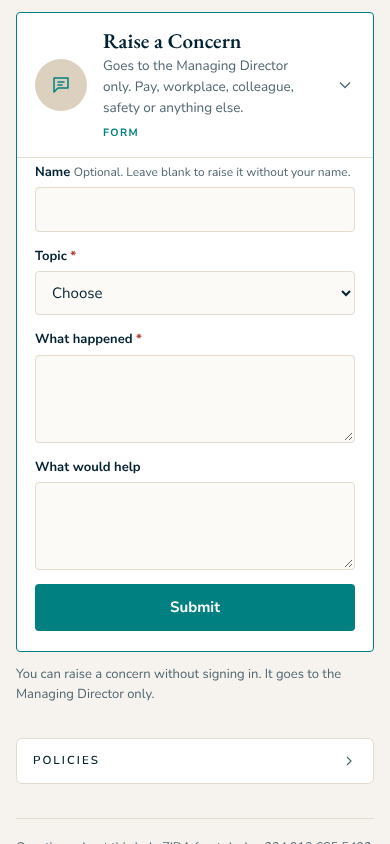
Policies
The staff policies.
- Read them when you need them.
Reports, requests and links
- Daily Report: what you finished (one task per line), proof links, what you did not finish and why, and tomorrow's plan.
- Requests: add a request at the end of any report: an approval, an item, money or help. The answer comes back on your hub.
- Links: paste a Google Drive or social media link. Files cannot be uploaded here.
What happens after you submit
- Your report goes to your line manager and the Managing Director. You see "Sent today" on the form.
- Payment requests go to the Managing Director first, then Finance pays and records the proof.
- Reviews, decisions and answers come back to your hub, and by email when there is something to read or do.
Questions
I see "Slow connection, still saving..."
Wait: it is still saving. Do not tap Submit again. If it fails, you see a message and can try once more.
I forgot to clock out
Tell Operations the same day so your record can be corrected.
Someone else's name shows at the top
Tap Not you? Switch code under the name, then enter your own code. Each hub keeps its own code on your device.
I made a mistake in something I sent
Send it again with the correction and say so in the notes, or tell your line manager. Nothing is lost.
Feedback on this guide
Reply to the Monday email with anything unclear or missing. Your feedback shapes the next version.
Zephyr Interior Design Academy · Front desk +234 913 685 5492 · All hub guides