
Zephyr Interior Design Academy
Hub guide: Director Hub
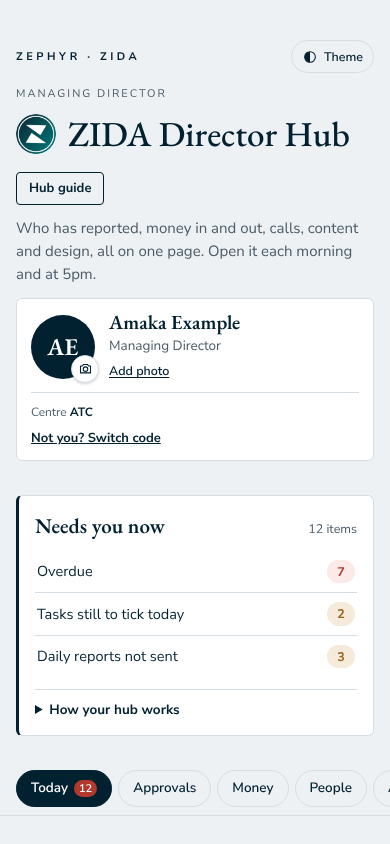
Welcome to your Director Hub. It brings your daily work into one place, so nothing depends on memory.
This guide walks you through it, card by card. Keep it open the first few times.
Who this hub is for
Director Hub is for the Managing Director.
Opening and signing in
- Open https://zida-team.netlify.app/director/ on your phone or computer.
- Enter your hub code once. Get your code from Operations privately; never share it or post it in a group.
- The hub remembers your code on that device. On a phone, add it to your home screen: Share, then Add to Home Screen (iPhone) or the menu, then Install app (Android).
- Tap Hub guide at the top of the hub at any time to come back to this guide.
Your routine
Every day
- Open the hub in the morning: read Needs you now and This morning.
- Approve or decline what waits on the Approvals tab.
- At 5pm, check Reports to review and give each report Good, Good with a note, or Needs action.
Each week
- Check Money: savings, budget and payroll when they are due.
- Look at System health on the Reports tab.
On Friday
- Read the week's reports and the overdue list before the weekend.
Your hub, section by section
The sections in the order you see them. Some sit under tabs at the top: tap a tab to switch.
Finding your way: tap a tab to switch. Close all at the top of a tab closes every card in it (Open all opens them). With Tidy on, opening one card closes the others; it is on by default on a phone and you can switch it on or off. Cards with something waiting open by themselves.
Tab: Today
Access
Where you enter your access code once on this device.
- Type your code and tap Load.
- The hub remembers it on this device. Never share it.
This morning
Your morning summary: what needs you today.
- Read it first thing.
- Tap a line to jump to the card it refers to.
Your tasks today
Open the card to see its details.
- Open the card.
- Follow the note under it.
Reports to review
Every Daily, Weekly and Special Task report from the last 14 days.
- Read each report: each field is a bulleted list, with Full text below.
- Tap Good, Good with a note, or Needs action with a comment and an optional due date.
- The person sees it on their hub and is emailed when there is a note or an action.
Overdue
Everything past its deadline and not done, across the team.
- Read the list each morning.
- Follow up each person; the list clears when they finish.
Attendance
Who clocked in today, and when.
- Check it in the morning.
- Follow up anyone missing.
Daily reports
Today's Daily Reports and this week's Weekly Reports.
- Read each report: each field shows as a bulleted list.
- Review each one under Reports to review.
Weekly reports
Today's Daily Reports and this week's Weekly Reports.
- Read each report: each field shows as a bulleted list.
- Review each one under Reports to review.
Incidents
Incidents reported at the centres.
- Read each one and follow up.
ZIDA Pro Practice sales
Online sales of the Pro Practice course.
- Check each sale is matched to a payment.
Tab: Approvals
Staff requests
Leave and payment requests waiting for your decision.
- Approve or decline each one.
- The person is emailed your decision.
Requests from reports
Requests you added to your reports, and their answers.
- Add a request at the end of any report.
- The answer shows here, and you are emailed.
Monthly budget for approval
Next month's budget, one line per category and centre.
- Fill in each line with a short note.
- Submit it for approval before the month starts.
Budget left this month and over-budget requests
What is left in this month's budget, per category.
- Check it before asking for a payment.
- Over-budget requests go to the Managing Director.
Discounts
Discounts that are active, and requests for new ones.
- Read the active discounts before you quote a price.
- Only the Managing Director approves a discount.
Designs to approve
Every draft, revision and final from the Graphic Designer.
- Tap Approve, or Needs changes with a comment.
- Made a mistake? Open Decided, tap Change decision and choose again. The designer is emailed the new decision.
External facilitator fees to approve
Other fees the Academic Coordinator added by hand, and sessions beyond the MOU count.
- Approve or Decline each line.
- Approved lines go into the next payroll.
External facilitators
The register of external facilitators on an MOU.
- Add or update a facilitator with modules, dates and fee.
- Fees and MOU changes go to the Managing Director for approval.
Student Requests
Requests students send from their hub.
- Open each request and act on it by its due date.
- Mark it done: the student is told automatically.
Pay penalties
Pay penalties proposed this month.
- Approve or change each one before payroll.
Tab: Money
Payments not in account
Student payments that need a check.
- Check each one against the bank.
- Mark it matched, or flag it as not in the account.
Money
The forms you use every day.
- Tap the form you need to open it.
- Fill in each field. For proof, paste a Google Drive or social media link: files cannot be uploaded.
- Tap Submit. You see "Sent today" on the form.
Savings and investment
The money figures for the month.
- Open the card for the figures.
- Confirm or query anything that waits for you.
Calls
Calls to students and the payments they promised.
- Check the promised dates.
- Follow up any promise that passes.
Payments promised
Calls to students and the payments they promised.
- Check the promised dates.
- Follow up any promise that passes.
Payroll this month
This month's payroll.
- It is built on the 24th.
- Operations checks it, Finance confirms it, the Managing Director approves it.
Centre P&L and savings
The money figures for the month.
- Open the card for the figures.
- Confirm or query anything that waits for you.
January offer uptake
The money figures for the month.
- Open the card for the figures.
- Confirm or query anything that waits for you.
Daily reconciliation
Student payments that need a check.
- Check each one against the bank.
- Mark it matched, or flag it as not in the account.
Withholding tax owed
The money figures for the month.
- Open the card for the figures.
- Confirm or query anything that waits for you.
Pay rules
The money figures for the month.
- Open the card for the figures.
- Confirm or query anything that waits for you.
Fee List
The money figures for the month.
- Open the card for the figures.
- Confirm or query anything that waits for you.
Fees holds
Students, their invoices and payments, and anyone late or on hold.
- Search for a student to see their invoices.
- Record payments against the right invoice.
Tab: People
Organogram
The organogram and staff directory.
- Tap a box for the profile card.
- Print or save as PDF from the organogram.
Staff directory
The organogram and staff directory.
- Tap a box for the profile card.
- Print or save as PDF from the organogram.
Recruitment, onboarding and offboarding
One checklist per vacancy, new person or exit.
- Start onboarding with the person's details.
- Tick each step when the document or evidence is in the file, with a link.
- The Managing Director follows each step from her hub.
Staff meetings
Staff meetings and who attended.
- Confirm attendance after each meeting.
People and HR
Links to the sheets and hubs for this area.
- Tap a tile to open it.
Content
Content and design links.
- Tap a tile to open it.
Design
Content and design links.
- Tap a tile to open it.
Media and design
Links to the sheets and hubs for this area.
- Tap a tile to open it.
Tab: Academics
Classes and delivery
Classes on the timetable and whether each was delivered and logged.
- Check it each evening.
- Follow up any class not delivered or not logged.
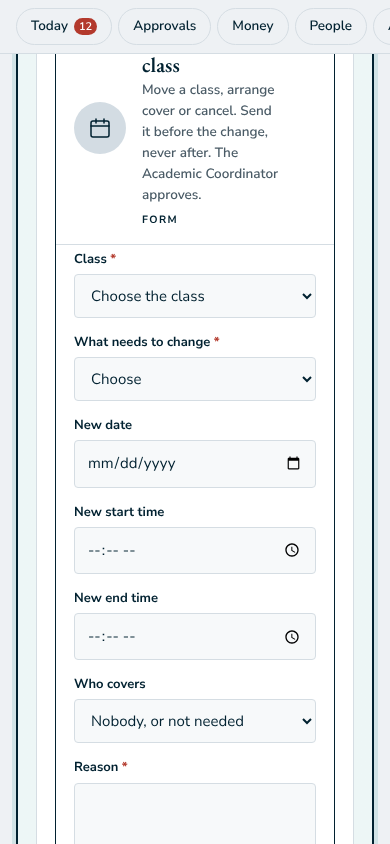
Schedule changes
Requests to move a class, arrange cover or cancel.
- The Academic Coordinator approves or declines each request.
- Everyone affected is emailed.
Student of the Month and awards
Student of the Month and awards.
- The Academic Coordinator confirms the shortlist.
- The Media and Visibility Lead posts it and marks it Posted.
View as student
See a student's hub as they see it, in Preview.
- Search for the student and tap View as student.
- Set the demo student's PIN here.
Students waiting for a supervisor
Academic records, timetables, applications and supervision.
- Open the card and work through each line.
My supervision students
Diploma students you supervise.
- Book and hold each review.
- Update the stage after each review.
Student feedback
What students say about fees, facilitators and the hub.
- Read it weekly.
- Act on anything that needs a follow-up.
External facilitator sessions
One card per class taught by an external facilitator: the moderator's review, student responses and the thank-you email.
- Check each card after the class.
- Tap Remind if a moderator review is missing.
- Tap Send now if a thank-you did not go out. Edit the thank-you text at the bottom.
Site visit reports
A summary per site visit: students who attended, reports submitted and graded, and the average.
- Check it after each visit.
- Follow up a visit with reports waiting more than 7 days.
Academics
Links to the sheets and hubs for this area.
- Tap a tile to open it.
Tab: Reports
Reports for the board
Open the card to see its details.
- Open the card.
- Follow the note under it.
Reports in full
Open the card to see its details.
- Open the card.
- Follow the note under it.
System health
How the hubs are running: speed, failed saves, storage and email quota.
- Check it weekly.
- Red means time to plan the move to a bigger system.
Records
Links to the sheets and hubs for this area.
- Tap a tile to open it.
Reports, requests and links
- Daily Report: what you finished (one task per line), proof links, what you did not finish and why, and tomorrow's plan.
- Requests: add a request at the end of any report: an approval, an item, money or help. The answer comes back on your hub.
- Links: paste a Google Drive or social media link. Files cannot be uploaded here.
What happens after you submit
- Your report goes to your line manager and the Managing Director. You see "Sent today" on the form.
- Payment requests go to the Managing Director first, then Finance pays and records the proof.
- Reviews, decisions and answers come back to your hub, and by email when there is something to read or do.
Questions
I see "Slow connection, still saving..."
Wait: it is still saving. Do not tap Submit again. If it fails, you see a message and can try once more.
I forgot to clock out
Tell Operations the same day so your record can be corrected.
Someone else's name shows at the top
Tap Not you? Switch code under the name, then enter your own code. Each hub keeps its own code on your device.
I made a mistake in something I sent
Send it again with the correction and say so in the notes, or tell your line manager. Nothing is lost.
Feedback on this guide
Reply to the Monday email with anything unclear or missing. Your feedback shapes the next version.
Zephyr Interior Design Academy · Front desk +234 913 685 5492 · All hub guides